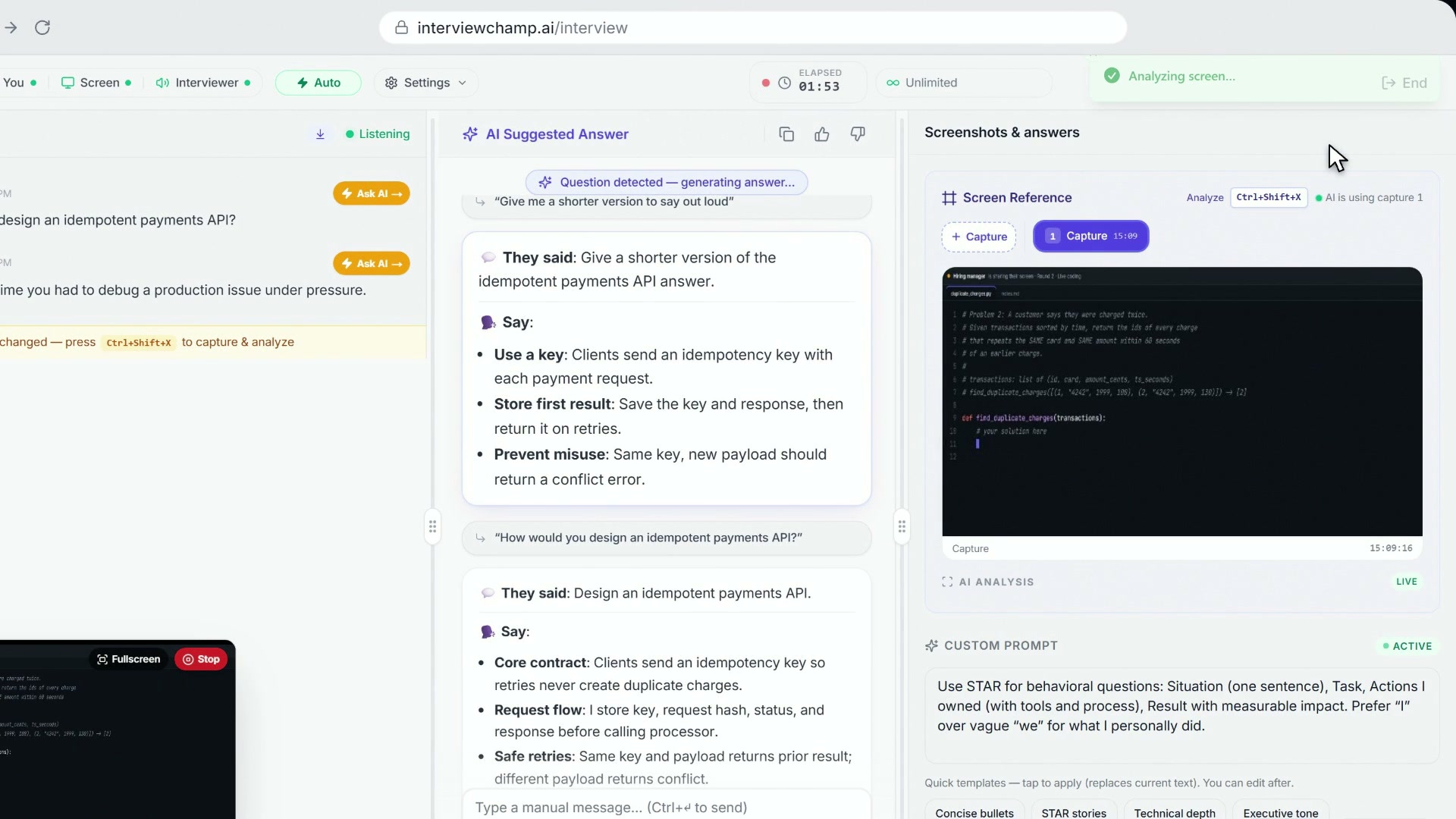
Coding questions on your screen: InterviewChamp reads them (web app)
Video · 0:12
When the interviewer shares their screen (a coding prompt, a job description, a doc), press Ctrl+Shift+X (Windows) or ⌘+Shift+X (Mac). The AI captures the visible region of your screen and analyzes whatever's on it.
You don't always have to press it: when what's on your shared screen changes (say, a coding question appears), a Screen changed note offers Capture & analyze. Click it, and a few seconds later the AI has read the problem and the code.
What gets captured
The active screen-share tab you picked when you started the session. Not your full desktop, not other monitors — only the surface you explicitly shared with the browser at session start. If you didn't enable screen-share, this shortcut does nothing.
What the AI does with it
- Reads the text (OCR for images, direct extraction for HTML)
- Identifies what kind of content it is: code snippet, JD bullet list, system-design diagram, free-form question, etc.
- Streams a context-aware answer in the AI Suggested Answer panel + populates the Screen Reference panel on the right with the captured snippet so you can see what was analyzed
- If it's a coding prompt, also identifies the language + suggests a starting approach
- If it's a JD, extracts requirements and matches them to your resume (when uploaded)
When to use it
In a live interview with a person, check what the company allows first: some are fine with notes or an AI helper and some aren't. For tests, proctored assessments, recorded video interviews and take-homes, practice beforehand with InterviewChamp and don't use an AI helper during the test itself.
- Coding round. Interviewer pastes the prompt → Ctrl+Shift+X → AI gives you the approach in 2-3 seconds.
- JD walk-through. Interviewer says "this is the JD we're hiring for" → capture → AI ties each bullet back to your resume bullets in real time.
- Architecture diagram. They share a system-design whiteboard → capture → AI names the components and suggests questions you should ask.
- Behavioral prompt on screen. Sometimes interviewers paste behavioral questions ("describe a difficult teammate"). Capture → AI fires a STAR-shaped answer using your background.
Where the captured snippet lives
Bottom of the Screen Reference panel (right column). It's a thumbnail + the extracted text, so you can see WHAT the AI analyzed in case the answer feels off. Click the thumbnail to expand the full capture.
Why use a shortcut instead of letting it run continuously
Reading your screen non-stop would fire answers on every accidental scroll and use up your AI allowance fast. With a shortcut, you get an answer exactly when you ask for one, and nothing runs in between.
Gotchas
- No share = no capture. If you skipped the screen-share prompt at session start, this shortcut is a no-op. Re-start the session and accept the screen-share prompt.
- Captures the wrong tab. Browser screen-share is tab-scoped. If you share Tab A and the interviewer is in Tab B, the capture pulls Tab A's content. Make sure to share whichever tab the interviewer is screen-sharing.
- Slow on flaky internet. The OCR + analysis round-trip is ~2-4 seconds. On a flaky connection it can stretch to 6-8 seconds. Worth it; nothing else does this.
- Captured snippets aren't stored long-term. They live in the session's view state and disappear when the session ends. Screenshot the panel if you want a record.
On the desktop app
The desktop app supports the same shortcut globally (i.e., works even when the desktop overlay isn't the focused window). Web requires the browser tab to have focus.
Still stuck?
Help & how-tos → Contact us with category "Something is broken" + a screenshot of what you captured vs what the AI returned.
Still stuck?
Sign in and message the founder directly from the Help & how-tos tab. Every reply comes from a real person, usually within a few hours.
Contact us