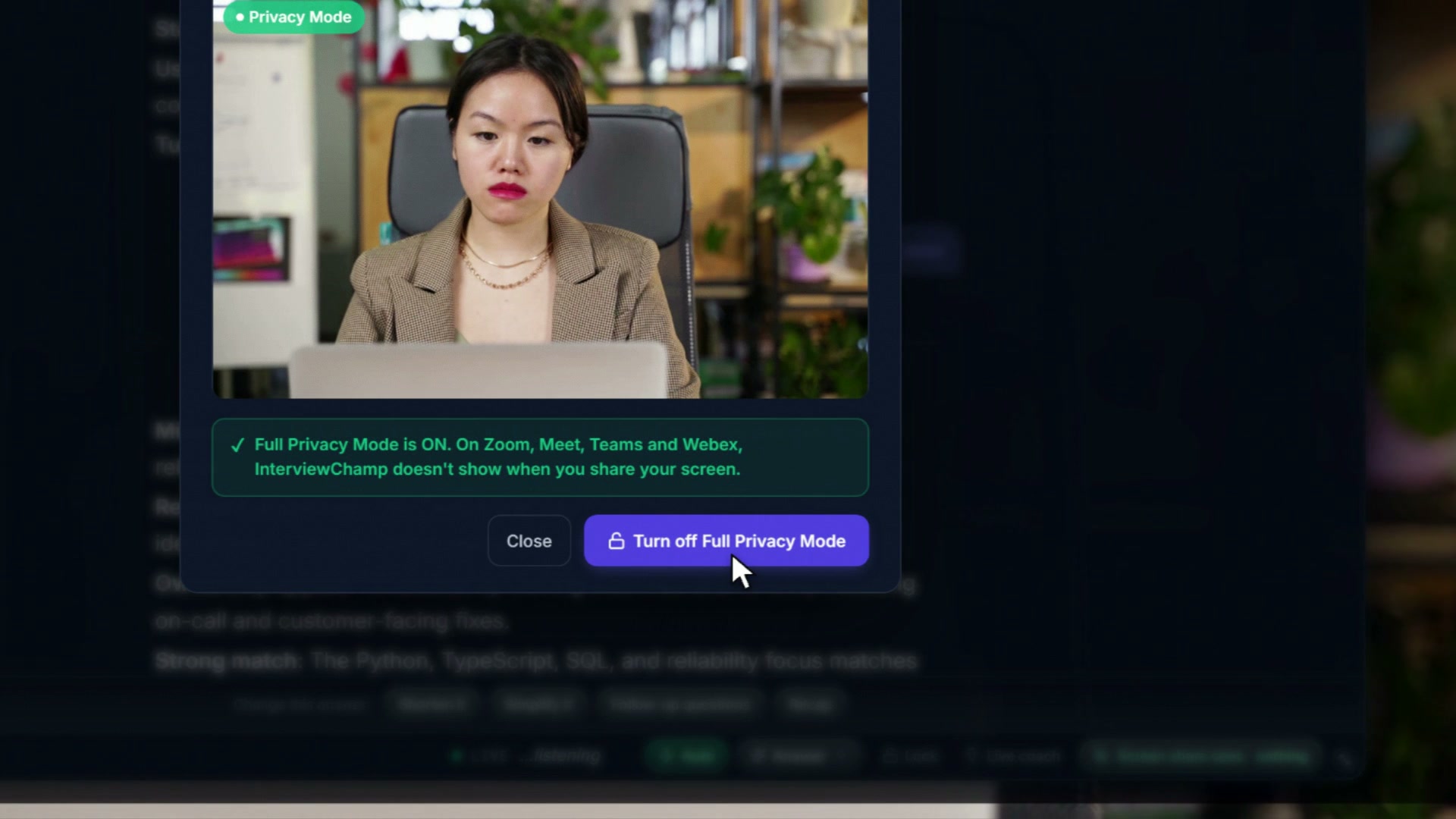
How to turn on Full Privacy Mode in the InterviewChamp desktop app
Video · 0:27
With Full Privacy Mode, InterviewChamp doesn't show when you share your screen. The desktop app does this with the operating system's capture-exclusion setting on Windows and macOS, the same one password managers use for their pop-ups.
Available on every Pro+ plan (weekly, monthly, quarterly or yearly) and Lifetime. Not available on Free or the standard Pro plan.
How it works
The desktop app asks the operating system to leave its windows out of screen capture:
- Windows: you see the InterviewChamp window on your screen as normal, but Windows leaves it out of anything that captures or shares the screen.
- macOS: the same idea. You see the window, and screen sharing shows nothing where it is.
It's not a hack on top of your meeting app. It's a setting built into the operating system. Meeting apps that respect it include:
- ✅ Zoom (host + participant share)
- ✅ Google Meet
- ✅ Microsoft Teams
- ✅ Webex
- ✅ Discord screen-share
Don't take that list on trust. Run the share-to-self test below before you rely on it.
Turning it on
Full Privacy Mode is on by default for Pro+ and Lifetime. You'll find it in two places in the desktop live window:
- The privacy pill in the toolbar. Green means on, red means off.
- The privacy row in the Settings menu (the sliders button) on the toolbar.
Clicking either one opens a check window with a live preview of what screen capture sees, plus the on/off button. With the setting on, the InterviewChamp windows show up black or missing in that preview. On Free and standard Pro, the same window shows an upgrade button instead of the on/off button.
Your desktop app may still show an older name for the feature on the pill, the menu row and the check window. Everything works as described here.
Checking it with a share-to-self test
The preview is a quick first look. The real check is a test meeting:
- Confirm your plan: Settings → Billing should show a Pro+ plan (Weekly, Monthly, Quarterly or Yearly) or Lifetime
- Make sure the privacy pill in the desktop toolbar is green
- Open a Zoom test meeting (zoom.us/test) and share your screen to yourself in another tab. InterviewChamp should be missing (or a black box) in the shared video while it stays visible on your actual monitor.
Run it before any call where you'll share your screen, and again after a big OS or meeting-app update.
What Full Privacy Mode does NOT do
It changes one thing: what screen capture sees. It does not hide:
- You. Your webcam, your face, your voice and your room are on the call as usual.
- Other cameras. A phone or camera pointed at your screen sees everything on it.
- What the platform records. Interview platforms can record your camera and mic, and coding tools can log your keystrokes and pastes. Full Privacy Mode doesn't touch any of that.
- Proctoring, monitoring or security software. These tools can see far more than a screen image, like which apps are running.
- Audio. The AI doesn't speak. But if you use text-to-speech for accessibility, your meeting's mic can pick that audio up.
It also doesn't change what the interviewer asks, how they score you, or the company's rules.
Check what the company allows
Some live interviews are fine with notes or an AI helper and some aren't. Check what the company allows before the call, for example by asking your recruiter.
Taking a test, a proctored assessment, a recorded video interview or a take-home? Practice before it with InterviewChamp. Don't use an AI helper during the test itself.
Other features gated on Pro+
Bundled with Full Privacy Mode:
- Always the latest model — never auto-downgraded under load
- 2 concurrent sessions — run a coaching review while a live interview is happening
- Priority support — always on
- Everything in Pro — unlimited interview minutes, every AI model, the full resume rubric
Upgrading
Visit /pricing and pick any Pro+ plan: weekly, monthly, quarterly or yearly. Yearly is $79/mo billed annually — about 20% cheaper per month than monthly. Lifetime is currently paused; the legacy Lifetime plan is grandfathered.
Common questions
Q: Does InterviewChamp show up when I share my screen? A: Not while Full Privacy Mode is on. The operating system leaves our window out of what your meeting app captures, so your monitor shows InterviewChamp and the shared screen doesn't. Run a share-to-self test to confirm it on your setup. With the setting off, or on Free and standard Pro, it's an ordinary window and your share shows it. Your webcam and your voice are on the call either way, so check what the company allows.
Q: How do I know Full Privacy Mode is ON for me? A: Two ways: (1) the green privacy pill in the desktop toolbar, (2) Settings → Billing tab shows a Pro+ plan or "Lifetime". Free / Hour Pack / standard Pro don't include it.
Q: I'm on the standard Pro plan. Why don't I have Full Privacy Mode?
A: It's Pro+ only. Upgrade at /pricing → Pro+ Monthly ($99) or Pro+ Yearly ($79/mo). Standard Pro is unlimited AI, but the interviewer can see InterviewChamp if you share your screen.
Q: InterviewChamp still shows in my test share. A: Check that the privacy pill in the toolbar is green and that your plan is Pro+ or Lifetime. Update the desktop app, then run the test again. If it still shows, Contact us with your OS version and the meeting app you used.
Q: Does Full Privacy Mode hide InterviewChamp from monitoring or proctoring software? A: No. It only means InterviewChamp doesn't show when you share your screen. Monitoring, security and proctoring tools can see far more than that. Don't use InterviewChamp where the company or the test doesn't allow it.
Q: Can I turn Full Privacy Mode OFF? A: Yes. Click the privacy pill in the desktop toolbar (or the privacy row in the Settings menu), then use the on/off button in the check window that opens. Off = InterviewChamp shows in your shared screen and in your own screenshots. Useful if you're demo'ing the product or want to share your screen showing the AI.
Q: Will macOS Sequoia / Windows 11 24H2 / [new OS version] break Full Privacy Mode? A: Both settings are built into the operating system by Apple and Microsoft. We test against each new release; if a bug appears, we ship a patch fast. Run a share-to-self test after any big update anyway.
Q: Why doesn't Free or standard Pro get Full Privacy Mode? A: It's one of the things Pro+ adds, next to always the latest model and 2 concurrent sessions. Some tools charge $149.99/mo for screen-share privacy alone. Pro+ is $79/mo on yearly and also includes unlimited AI + always the latest model.
When InterviewChamp can still show
Full Privacy Mode only works with capture software that respects the operating-system setting. Most meeting apps do. Some security and monitoring tools don't: they read the screen at the driver level, and InterviewChamp can show up there. Full Privacy Mode isn't a way around that kind of software, so check what the company allows.
If InterviewChamp ever shows up on a screen you share while Full Privacy Mode is on, Contact us and we'll refund your last charge.
Still stuck?
Sign in and message the founder directly from the Help & how-tos tab. Every reply comes from a real person, usually within a few hours.
Contact us