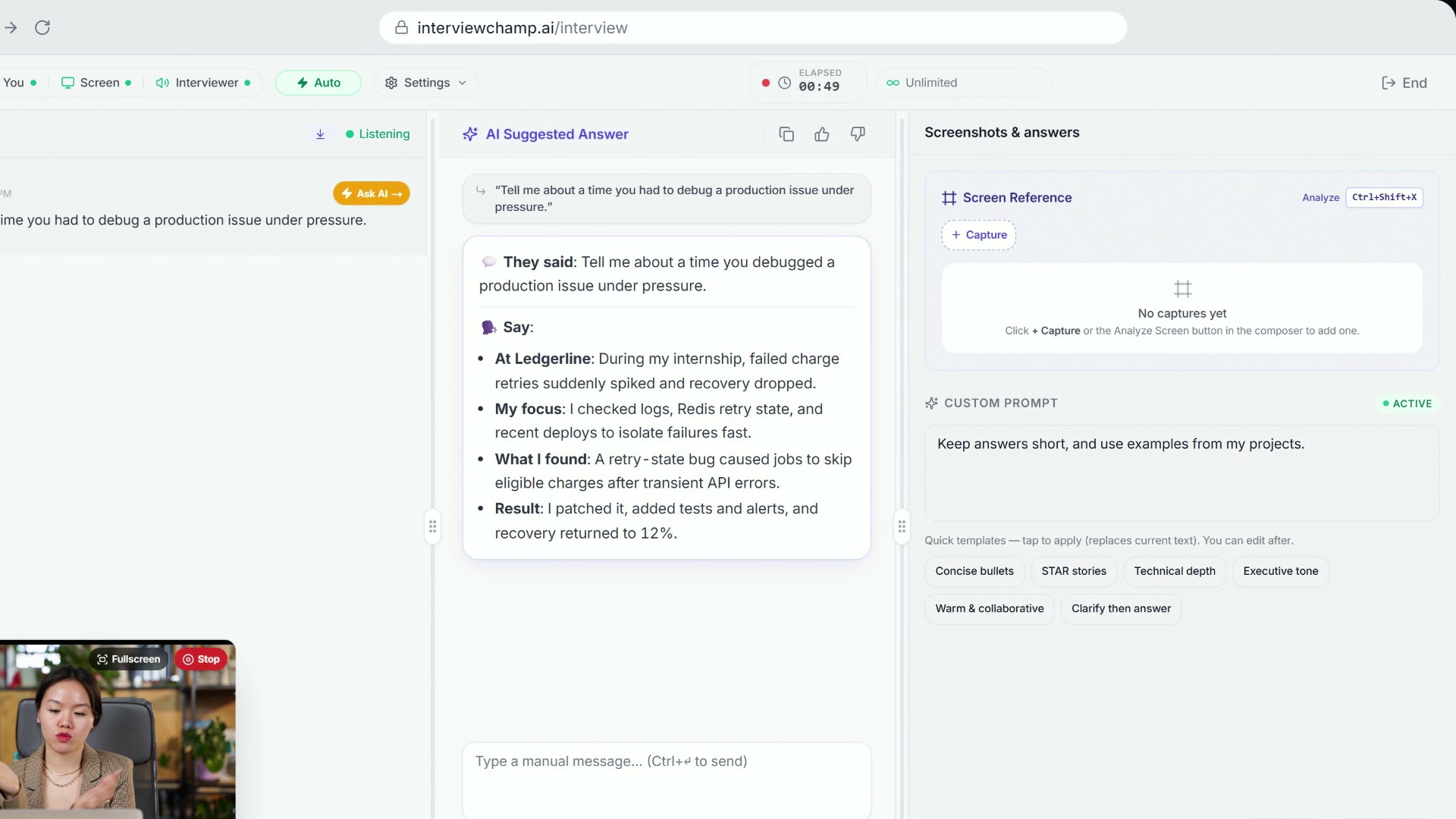
How to use InterviewChamp in your browser during a live interview (full walkthrough)
Video · 2:44 · 8 chapters
In the video: — on the live page, Shortcuts lists every one.
Every shortcut is the same key combination on web and desktop. macOS users: substitute ⌘ wherever you see Ctrl, except the few in the On a Mac section below, which add ⌥ (Option). Linux users: same as Windows.
Live session shortcuts
These work inside /interview (web) and the live overlay window (desktop). The desktop versions register as global shortcuts — they fire even when the AI overlay isn't focused (so you can fire AI while Zoom is focused).
| Action | Shortcut | Notes |
|---|---|---|
| Answer current question | Ctrl+Enter | Fires the AI on the latest question in the transcript. Manual-mode trigger. |
| Capture & analyze screen | Ctrl+Shift+X | Screenshots active screen, sends to AI with last question for grounded answer (e.g., "what's wrong with this code?"). See Screen Analysis. |
| Copy latest AI answer | Ctrl+Shift+C | Plain-text copy to clipboard. Strips inline-advice pills + markdown. |
| Toggle microphone | Ctrl+M | Mutes/unmutes your mic capture. Doesn't affect interviewer audio. |
| Toggle interviewer audio | Ctrl+Shift+S | Pause/resume system-audio capture (the interviewer's voice channel). |
| Focus chat composer | Ctrl+/ | Jumps cursor into the bottom message input. |
| End Session | Ctrl+Shift+E | Ends the session immediately — same as clicking End Session button. |
| Hide / show live window | Ctrl+H | (Desktop only) Toggles overlay visibility. |
| Hide / show window (global) | Ctrl+Shift+H | (Desktop only, global) Works even when another app has focus. |
| Clear answers | Ctrl+Backspace | Wipes the AI answer stack. Transcript stays. |
| Clear transcript | Ctrl+Shift+Backspace | Wipes the live transcript. Answers stay. |
Navigating AI answers
When the AI gives you multiple answers in a row, navigate the stack without scrolling:
| Action | Shortcut |
|---|---|
| Previous AI answer | Ctrl+← |
| Next AI answer | Ctrl+→ |
| Scroll AI answer up | Ctrl+↑ |
| Scroll AI answer down | Ctrl+↓ |
The stack shows newest at top (since 2026-05-18). Ctrl+← goes to the older answer below.
Desktop overlay controls
These are desktop-only since they don't apply in a browser tab:
| Action | Shortcut | Notes |
|---|---|---|
| Move to next screen | Ctrl+Shift+→ | Multi-monitor setups — moves the overlay to the next display. |
| Increase overlay opacity | Ctrl+Shift+↑ | Brighter overlay. Useful in bright rooms. |
| Decrease overlay opacity | Ctrl+Shift+↓ | Dimmer overlay. Useful in dark rooms. |
| Reset overlay (emergency) | Ctrl+Alt+Shift+R | If overlay misbehaves — re-mounts the live window + resets click-through. |
| Force quit app (emergency) | Ctrl+Alt+Shift+Q | Triple-modifier kill. The desktop app has no tray icon by default, so this is the way out if it stops responding. |
On a Mac
During an interview the desktop shortcuts work in every app, and on a Mac ⌘ plus an arrow, ⌫ or / is a typing key (jump to the start or end of a line, delete the line, comment out code). So these add ⌥ (Option) on a Mac, on the website too:
| Action | Mac |
|---|---|
| Previous / next AI answer | ⌘⌥← / ⌘⌥→ |
| Scroll AI answer up / down | ⌘⌥↑ / ⌘⌥↓ |
| Focus chat composer | ⌘⌥/ |
| Clear answers | ⌘⌥⌫ |
| Move to next screen | ⌘⌥⇧→ |
| Increase / decrease opacity | ⌘⌥⇧↑ / ⌘⌥⇧↓ |
End Session stays on the Control key on a Mac too: ⌃⇧E.
Home page shortcut (web only)
| Action | Shortcut | Notes |
|---|---|---|
| Command palette | Cmd+K / Ctrl+K | (Web /home) Opens search palette → filters help articles (how it works). |
Why so many shortcuts on desktop?
The desktop app runs as a transparent overlay. You'll often have an interview app (Zoom, Google Meet, Teams) focused — your mouse is on THAT window. Without global shortcuts, you'd have to alt-tab to the overlay first, click in, then trigger the AI, which pulls you out of the conversation. Global shortcuts let the overlay fire from wherever your cursor is.
Why Ctrl+Alt+Shift+R and Ctrl+Alt+Shift+Q are weird
Triple-modifier shortcuts are intentionally hard to accidentally trigger while typing. Pressing Ctrl+Alt+Shift+R while answering a question is vanishingly unlikely — but it's there for the edge case where the app misbehaves and, with no tray icon to click (the default), you can't easily reach it another way.
What's NOT a shortcut
Things people often ask about that don't have a shortcut today:
- Switch answer style mid-session — UI only (topbar Settings)
- Switch model mid-session — UI only (topbar Model dropdown)
- Toggle Auto-Answer — UI only (Auto/Manual pill in topbar)
- Toggle Coaching mode — UI only (topbar Settings → Coaching tips)
- Toggle Live coach — UI only (topbar Settings → Live coach)
These are deliberately UI-only — they're settings that should be set BEFORE the session, not pivoted mid-session. (Answer style is an exception — switching it mid-session is intentional UX.)
Customizing shortcuts
Not supported yet. If a shortcut conflicts with another app you use (Zoom uses Ctrl+M for mute too — see Gotchas), let us know via Help & how-tos.
Gotchas
Ctrl+Mcollision with Zoom. Zoom usesCtrl+Mfor mute. When the desktop overlay registers the global hotkey, our app eats it before Zoom — so Zoom's mute stops working while the overlay is running. Workaround: use Zoom's mic icon in its toolbar, or unregister our shortcut via Settings (planned).Ctrl+Hon web hides browser history. On Firefox/Chrome inside/interview,Ctrl+Hopens history. UseCtrl+Shift+Hfor the live-window toggle on the web version (desktop only registersCtrl+Hbecause it's not a browser).
Still stuck?
Help & how-tos → Contact us with category "How do I…?" if you want a shortcut that doesn't exist — or if one conflicts with your interview app.
Still stuck?
Sign in and message the founder directly from the Help & how-tos tab. Every reply comes from a real person, usually within a few hours.
Contact us