The desktop app installs on your laptop — not here.
Sign up free in 30 seconds and we’ll email the installer link straight to your inbox. Open it on your laptop when you’re ready.
Email me the installer linkDownload InterviewChamp Desktop App
Real-time AI answers during live interviews. On Pro+, InterviewChamp doesn't show when you share your screen. Floats above Zoom, Teams & Meet.
~121 MB · .exe installer for Windows 10 / 11
~135 MB · .dmg for macOS 13 Ventura or later
Stuck on install? Email us — we’ll get you unstuck.
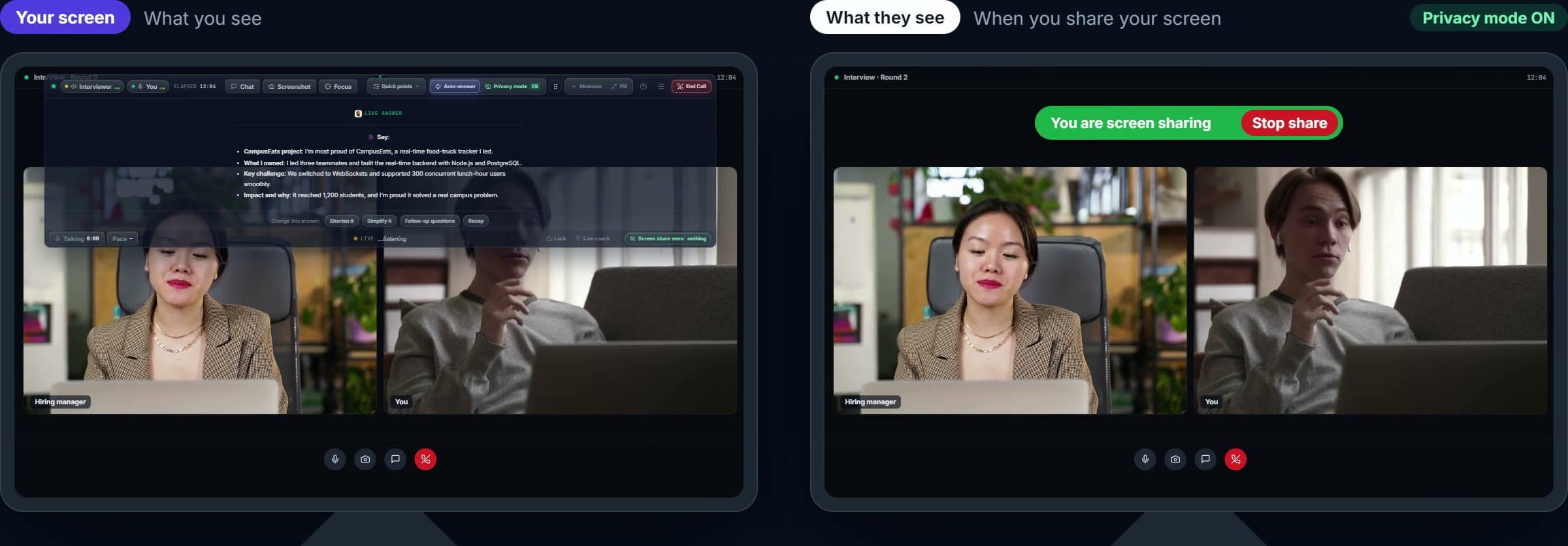
InterviewChamp doesn't show when you share your screen.
Same call, two views. On your screen, ChampMind answers live. When you share your screen, the interviewer sees the call and nothing else.
A floating panel, out of your way.
No extra icon next to your clock.
Zoom, Meet, Teams, Webex — at the OS level.
It uses the capture-exclusion setting built into Windows and macOS, the same one password managers use for their pop-ups. On Free and Pro, the interviewer can see InterviewChamp if you share your screen. It doesn't hide anything from your webcam, your mic or the room. Run a share-to-self test to see it work, and check what the company allows.
Why Use the Desktop App?
The desktop app unlocks what a browser tab simply can’t deliver — Full Privacy Mode, system-wide hotkeys, and system-audio capture.
InterviewChamp doesn't show when you share your screen
Full Privacy Mode (Pro+) excludes the overlay from screen-capture at the OS level on Zoom, Meet, Teams and Webex.
Real-Time AI Answers
Get instant AI-generated answers as questions are asked. Auto-detect mode listens and responds automatically.
Analyze Screen
Capture and analyze coding questions, diagrams, or any on-screen content with one hotkey.
Resume-Aware
Upload your resume and job description. AI tailors answers using your actual experience.
27+ Languages
Works in English, Spanish, French, German, Hindi, Nepali, and 20+ more languages.
Hotkey Controls
Ctrl+Shift+H to hide. Ctrl+Enter for AI answer. Ctrl+Shift+X to analyze screen. All from the keyboard.
Get Started in 3 Steps
Download & Install
Download the installer for your platform. Run it — installs in under a minute. No admin rights needed. On a Mac, open the .dmg and drag InterviewChamp.AI to Applications.
Sign In
Log in with your InterviewChamp account. Takes 30 seconds if you don't have one yet.
Start Your Interview
Set up your session with company, JD, and resume. Click Start Session — the overlay appears. You're ready.
 InterviewChamp.AI
~121 MB · .exe installer for Windows 10 / 11
~135 MB · .dmg for macOS 13 Ventura or later