How to install and set up the InterviewChamp desktop app (Windows)
Video · 2:44 · 3 chapters
The desktop app is where Full Privacy Mode lives (Pro+). With it, InterviewChamp doesn't show when you share your screen. It uses the operating system's capture-exclusion setting, the same one password managers use for their pop-ups. It doesn't hide your webcam or your room, and it doesn't change the company's rules, so check what the company allows. More in the Full Privacy Mode guide.
Available for Windows and Mac. Web works on any device (Mac included) for transcript + AI answers; desktop is the upgrade for Full Privacy Mode, where InterviewChamp doesn't show when you share your screen.
Windows
In the video:
- Visit interviewchamp.ai/download
- Click Download for Windows — you'll get a
.exeinstaller (~121 MB) - Run the installer. It is digitally signed.
- It installs in a few seconds with no questions, to
%LOCALAPPDATA%\Programs\InterviewChamp, adds a Start menu shortcut and opens by itself. - Sign in with the same account you use on the web — 1-Click Magic Login is the quickest (Desktop setup). Your sessions and resumes sync automatically.
macOS
Needs macOS 13 (Ventura) or later. Apple silicon Macs (M1 and newer) and Intel Macs each have their own installer.
- Visit interviewchamp.ai/download
- Not sure which Mac you have? Apple menu → About This Mac. "Chip: Apple M…" means Apple silicon; "Processor: Intel" means Intel.
- Click Download for Mac (Apple silicon) or Download for Mac (Intel) — you'll get a
.dmg(~135 MB) - Open the
.dmgand drag InterviewChamp.AI into Applications. - Open it from Applications. The app is signed and notarized by Apple, so macOS may say it's an app downloaded from the internet — click Open.
- macOS asks for permission to use the microphone, and to record the screen and system audio (that is how the app hears the interviewer). Click Allow. If you missed one: System Settings → Privacy & Security → Microphone and Screen & System Audio Recording → turn on InterviewChamp.AI, then quit and reopen the app.
- Sign in with the same account you use on the web (Desktop setup).
After install — first run
The first time, the app offers a one-minute practice run on the real toolbar (): a practice question, an answer under your camera, and where each button is. Nothing you say is saved.
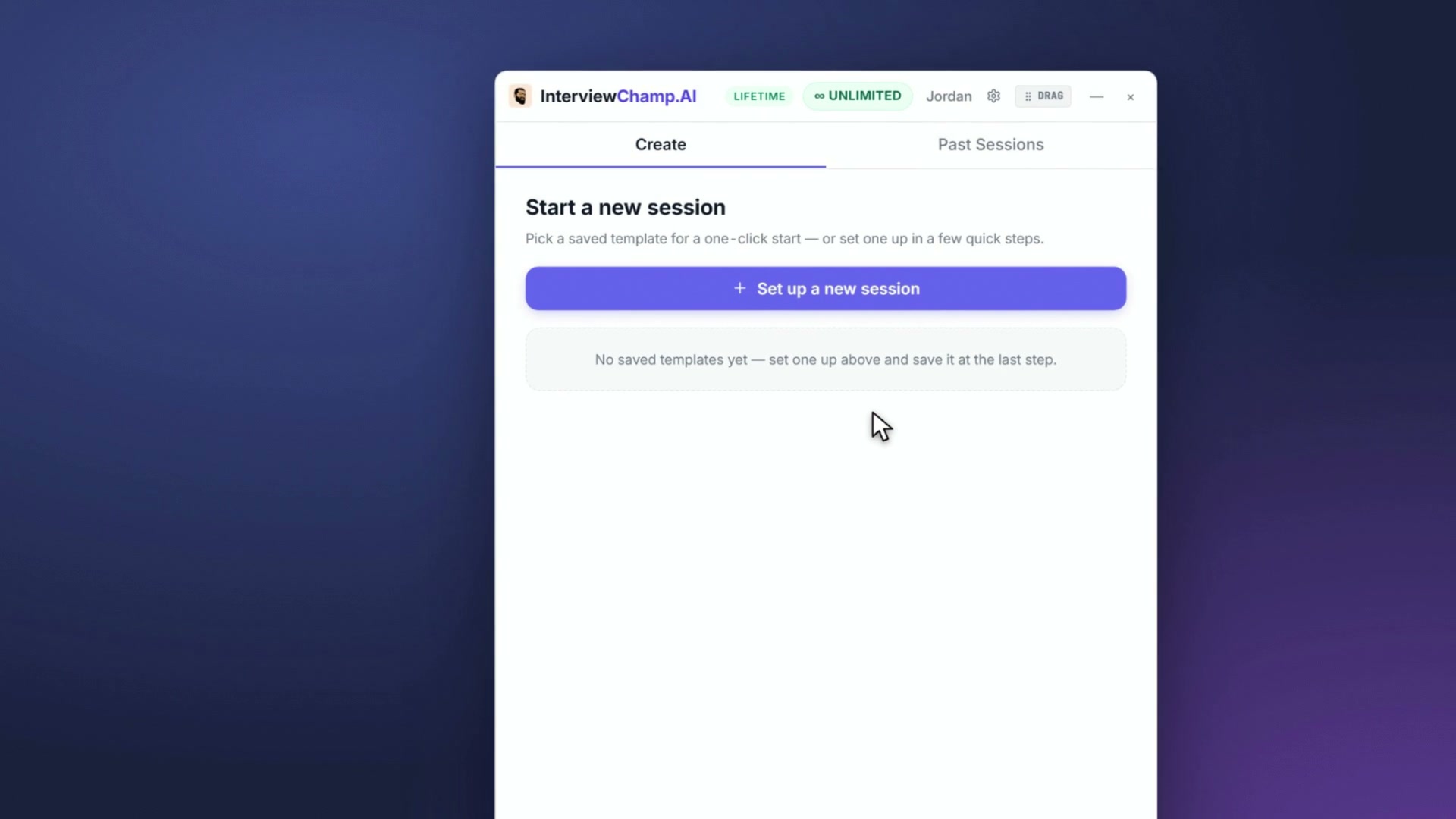
Then the app's home is where every session starts: setups you saved show up there for a one-click start, and a short setup wizard tells the AI about each new call (, Desktop setup). Hit Start Session and the toolbar pops up over your call. The overlay is:
- Always on top of every other window
- Stays private during the call when you share your screen, with Full Privacy Mode on (Pro+), on Zoom, Meet, Teams and Webex. Check it with a share-to-self test in a test meeting before a real call.
- Draggable anywhere on your screen; size and position are remembered between sessions
Keyboard shortcuts that work globally
While the app is running, these fire even when another window has focus:
| Shortcut | Action |
|---|---|
Ctrl+Enter | Generate AI answer for the latest interviewer line |
Ctrl+Shift+X | Analyze the current screen (interviewer just shared a doc?) |
Ctrl+Shift+C | Copy the most recent AI answer to clipboard |
Ctrl+M | Toggle microphone |
Ctrl+Shift+S | Toggle system-audio capture |
Ctrl+/ | Focus the manual-message composer |
On a Mac, use ⌘ where these say Ctrl (a few add ⌥ — see Keyboard shortcuts).
Updating
The app checks for updates by itself and downloads them in the background. When one is ready, the gear menu on the app's home shows Restart to install — click it when you're not in an interview. You can also check any time: gear → Check for Updates.
Uninstalling
Windows: Settings → Apps → InterviewChamp → Uninstall. Settings live in %APPDATA%\InterviewChamp\ — delete that folder if you want a clean slate. Mac: drag InterviewChamp.AI from Applications to the Bin.
Common questions
Q: Windows shows a "Windows protected your PC" screen. A: That is Microsoft Defender SmartScreen checking a file you downloaded. If you got the installer from interviewchamp.ai, click More info, then Run anyway. The installer is digitally signed.
Q: Is there a Mac version? A: Yes. The download page has an installer for Apple silicon Macs and one for Intel Macs (macOS 13 or later).
Q: The Mac app doesn't hear the interviewer, or has no microphone. A: macOS needs your OK for each. System Settings → Privacy & Security → Microphone and Screen & System Audio Recording → turn on InterviewChamp.AI, then quit and reopen the app.
Q: Where does the app install to?
A: %LOCALAPPDATA%\Programs\InterviewChamp. Settings + logs: %APPDATA%\InterviewChamp\.
Q: Does the desktop app need admin rights? A: No — the installer is per-user, not system-wide. Don't run it as admin.
Q: I installed it but can't find the icon. A: Start menu → search "InterviewChamp". If it's still missing, the install failed silently — run the installer again.
Q: How big is the install? A: ~121 MB.
Q: Can I install on a managed work laptop?
A: Probably — the installer is user-scoped and doesn't need admin. If IT blocks user-mode installs, ask them to whitelist interviewchamp.ai and the installer signature.
Q: How do I update? A: It checks and downloads by itself. When the gear menu shows Restart to install, click it. To check now: gear → Check for Updates.
Q: Sign-in keeps failing on first launch. A: Three checks: (1) right email? (2) network to api.interviewchamp.ai? (3) quit the app fully and relaunch it. Then see Desktop setup.
Still stuck?
Help & how-tos → Contact us with category "Something is broken" + your Windows or macOS version + which install step failed. The founder reads every reply.
Still stuck?
Sign in and message the founder directly from the Help & how-tos tab. Every reply comes from a real person, usually within a few hours.
Contact us