How to install and set up the InterviewChamp desktop app (Windows)
Video · 2:44 · 3 chapters
After you install the desktop app (install guide) and launch it, you sign in once. Then, each time you start a session, a short setup wizard tells the AI about the call before the live overlay opens. The desktop app runs on Windows and Mac.
Sign in
In the video:
Two ways:
1-Click Magic Login (quickest):
- Click 1-Click Magic Login and your browser opens
- Sign in there with Google or your email
- When the page says Desktop app signed in, go back to the app. It picks up the sign-in by itself.
Sign in with email:
- Your email and password, right in the app
- If you signed up with Google, first set a password on the web app, or use Magic Login
The first time, the app offers a one-minute practice run on the real toolbar (). Nothing you say is saved.
The setup wizard
In the video:
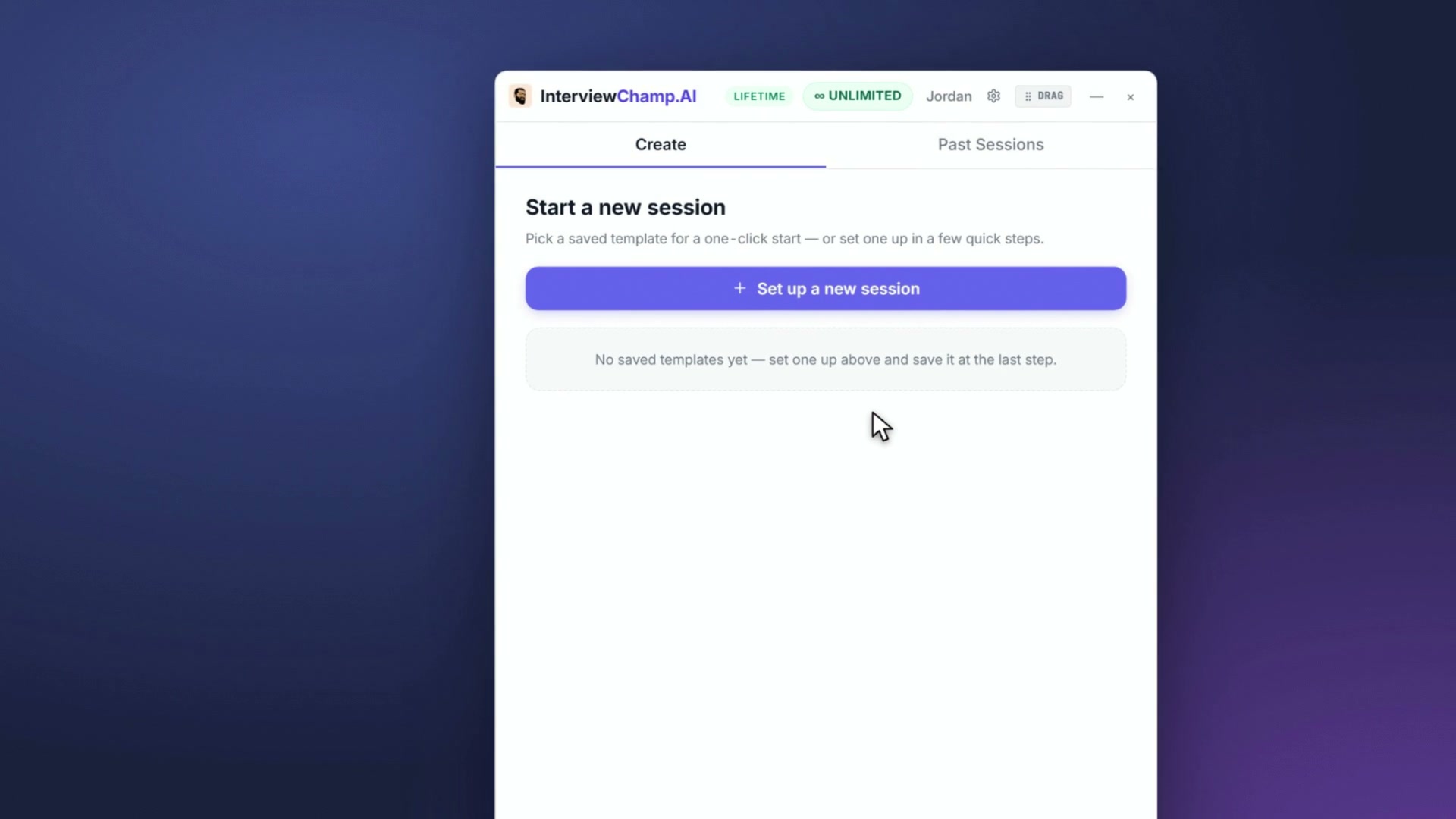
The app's home is where every session starts: setups you saved show up there for a one-click start, and the gear has your settings, updates and Devices & Sessions. For a new setup, each step is one question. Skip what you don't have; more context gives better answers.
| Step | What you pick |
|---|---|
| Session type | Interview, or Regular Call for any other kind of call (details) |
| Role | The job title, or paste the job post link and it fills things in for you |
| Company | Which company you're interviewing at |
| Job description | Paste it, so answers match what the job asks for (optional, but the biggest help) |
| Resume | Your main resume is already picked; choose another here (upload one) |
| AI model | Which model writes your answers (Model picker), and a session name if you like |
| Language | The language the interview will be in, so transcription listens for it |
| Speaker | Which speaker plays your call. Auto follows whichever speaker is playing (recommended). Test speaker and Test microphone check both right there |
| Instructions | Anything special the AI should know (Regular Calls pick a call template here) |
Last, pick how your answers look and how big, keep Save as a template on so next time it's one click, and hit Start Session: the toolbar pops up over your call.
How the app hears the interviewer
On Windows the app listens to your computer's sound output directly (WASAPI loopback — built into Windows, no driver install). That's how it hears the interviewer through Zoom / Meet / Teams, while your microphone gives it your side.
If the AI can't hear the interviewer:
- Speaker step — pick the device your call actually plays through, or leave it on Auto
- Audio routing — make sure the call is playing through that device (some Bluetooth headsets don't support loopback)
- Logs —
%APPDATA%\InterviewChamp\logs\main.logshows what the app captured
Microphone
If the app can't hear you:
- Wrong mic — the app listens to Windows' default microphone. Set the one you want as the default in Windows Sound settings, then check it with Test microphone on the setup's Speaker step
- Muted at the OS level — check Windows Sound settings
- Permission denied — Windows Settings → Privacy → Microphone → allow it for InterviewChamp
Common questions
Q: I signed in but the desktop app says "Not signed in." A: Quit the app fully and relaunch it. If it's still stuck, sign out and sign in again.
Q: Setup window is blank / white.
A: Quit fully + relaunch. If it persists, check %APPDATA%\InterviewChamp\logs\ and message support with the log attached.
Q: I want to use a different mic mid-interview. A: The app uses Windows' default microphone, so set the mic you want as the default in Windows Sound settings, ideally before the session starts.
Q: Is there a Mac version? A: Yes. Install it from the download page (macOS 13 or later, Apple silicon or Intel; steps in the install guide). Setup is the same, with two differences: macOS asks for your microphone permission before the toolbar opens, and the speaker step is a short sound check instead.
Still stuck?
Help & how-tos → Contact us with category "Something is broken" + attach %APPDATA%\InterviewChamp\logs\main.log.
Still stuck?
Sign in and message the founder directly from the Help & how-tos tab. Every reply comes from a real person, usually within a few hours.
Contact us