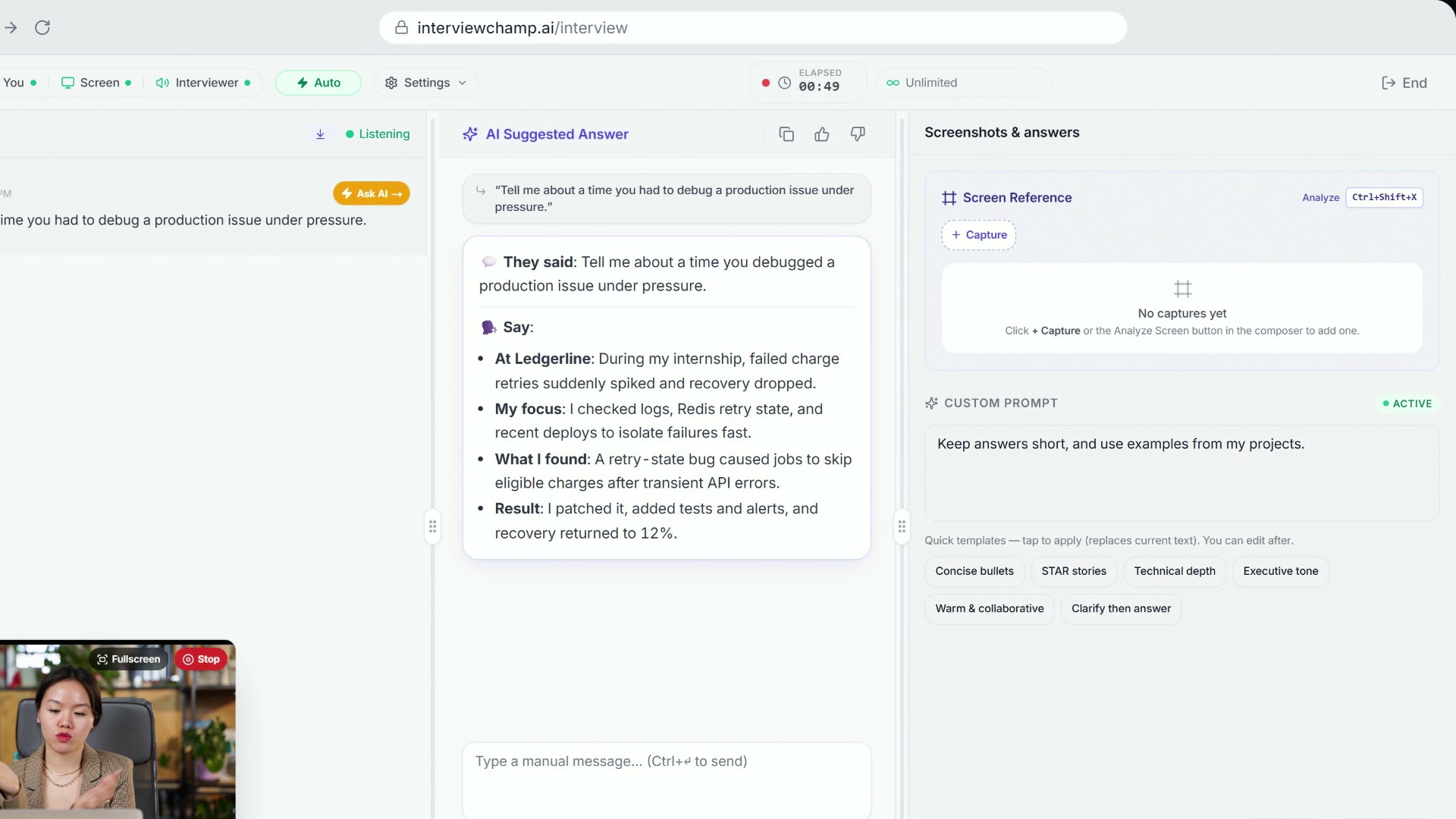
How to use InterviewChamp in your browser during a live interview (full walkthrough)
Video · 2:44 · 8 chapters
The topbar at the top of /interview is the live-session control center. Left to right: your plan, the status lights, Auto / Manual, Settings, then the timer and your minutes in the middle, and End on the right. Here's what each one does and when to touch it. In the video:
Layout (left → right)
| Position | Button / pill | Action |
|---|---|---|
| Left | Plan badge | Which plan you're on. |
| 🎙 You (your mic) | Green = the AI hears you. Click to mute/unmute. Shortcut: Ctrl+M. Doesn't affect interviewer audio. | |
| 🖥 Screen | Green = sharing the tab the AI is reading. Click to share or stop. | |
| 🔊 Interviewer | Green = the AI hears the interviewer through the shared tab. Shortcut: Ctrl+Shift+S. (Their audio on a Regular Call.) | |
| ⚡ Auto / Manual | One click switches between Auto-Answer and Manual. | |
| ⚙️ Settings | Answer style, Auto-Answer, Live coach, Coaching tips and the AI model. | |
| Center | ⏱ Timer | Running session duration. MM:SS until the hour mark, then HH:MM:SS. |
| Minutes pill | "N min left" or "Unlimited" depending on plan. Shows secondary "N free min left this month" on Free tier. | |
| Right | 🚪 End | Two-step inline confirm — first click reveals "Yes, end" + "Cancel". Shortcut: Ctrl+Shift+E. |
To get an answer yourself, use the AI Answer button at the bottom of the answer panel, or Ctrl+Enter. There's no answer button in the topbar.
There's no Back button in the topbar by design. Leaving = End Session.
What each does in depth
You / Screen / Interviewer lights
Three independent channels — all need to be green for the AI to hear everything:
- You — captures YOUR voice. Required for diarization (which line is yours vs interviewer's).
- Screen — the tab you shared. This is how the AI hears the interviewer through Zoom/Meet/Teams, and what it reads when you capture your screen.
- Interviewer — whether the shared tab's sound is being processed. Toggle off temporarily if you don't want the AI listening for 30 seconds.
If any light is grey/red, that channel is broken. Click it; the browser will re-prompt for permission.
Auto / Manual
Auto (green): the AI answers each interviewer question by itself. Manual (amber): it waits until you ask. New sessions start in Auto unless you turned Auto-Answer off in Settings › Account. See Auto-Answer.
AI model
In Settings, under AI model. Free users see the Pro models locked with a 🔒 — clicking one shows an upgrade note. See Model picker.
Timer + Credits pill
Timer = elapsed session time. Credits pill shows your remaining live-AI minutes. Free tier: a 15-min slab counter + total "N free min left this month" (60-min monthly cap). Hour Pack: minutes from your purchased hours. Pro/Pro+: "Unlimited" (infinity icon).
Settings (gear ⚙️)
The control panel. Opens a popover with:
- Answer style — Quick points / Conversational / Simple / More human (see Answer style)
- Auto-Answer toggle (see Auto-Answer)
- Live coach toggle (see Inline advice pills)
- Coaching tips toggle (see Coaching mode)
- AI model (see Model picker)
Open settings BEFORE the interview starts, not mid-call. Changes are session-scoped.
End Session
Two-step inline: click once → reveals "Yes, end" + "Cancel" inline next to the button. Click "Yes, end" → session terminates immediately, you're routed to /sessions/[id] for the retrospective. Ctrl+Shift+E is the keyboard shortcut.
The X button on a paywall modal also ends the session (fixed 2026-05-17 to prevent zombie "Live" cards). Don't trust browser refresh / tab close to clean up — always use End Session.
Common questions
Q: Why is the Screen light grey? A: Your browser hasn't been granted screen-share permission, OR the tab you shared was closed. Click it, re-share the Zoom/Meet/Teams tab.
Q: Why can't I click the Pro models in the AI model list? A: You're on Free or Hour Pack — Pro models are locked. Either upgrade to Pro, or stick with the 2 free models (Claude Haiku 4.5, GPT-5.4 Mini).
Q: Where's the gear / settings icon? A: On the left side of the topbar, right after Auto / Manual. Looks like a gear ⚙️. Click it to change the answer style, Auto-Answer, Live coach, Coaching tips or the AI model.
Q: How do I change the answer style mid-session? A: Gear icon → Answer style → tap one. Switching mid-session is intentional — the next AI answer uses the new style, and it's saved to your account.
Q: The AI Answer button isn't doing anything when I click it. A: Three possible causes — (1) the Interviewer light is grey (no transcript = nothing to send to AI), (2) you're at the 60-min monthly cap on Free tier, (3) the connection dropped (the topbar shows a "Reconnecting" note while it comes back).
Q: I accidentally hit End Session. Can I undo it?
A: No — End is destructive. But all your transcript + AI answers were saved. Open /sessions/[id] to review them. You can start a new session with the same job context, but the in-progress one is gone.
Q: What's the difference between End Session button and just closing the tab? A: Closing the tab leaves a "Live" zombie session in your list (it'll auto-clean after ~5 min). End Session immediately finalizes the row, saves the transcript, and shows the scorecard. Always end cleanly.
Q: Why doesn't my mic shortcut Ctrl+M work? A: Two reasons — (1) Zoom uses Ctrl+M for its own mute and may be intercepting the key, (2) you're on web (not desktop) and the page lost focus. Click into the InterviewChamp tab first.
Still stuck?
Help & how-tos → Contact us with category "Something is broken" + which button + what it did vs what you expected.
Still stuck?
Sign in and message the founder directly from the Help & how-tos tab. Every reply comes from a real person, usually within a few hours.
Contact us