Helper ModeBeta Your friend sees the question. You get the hint.
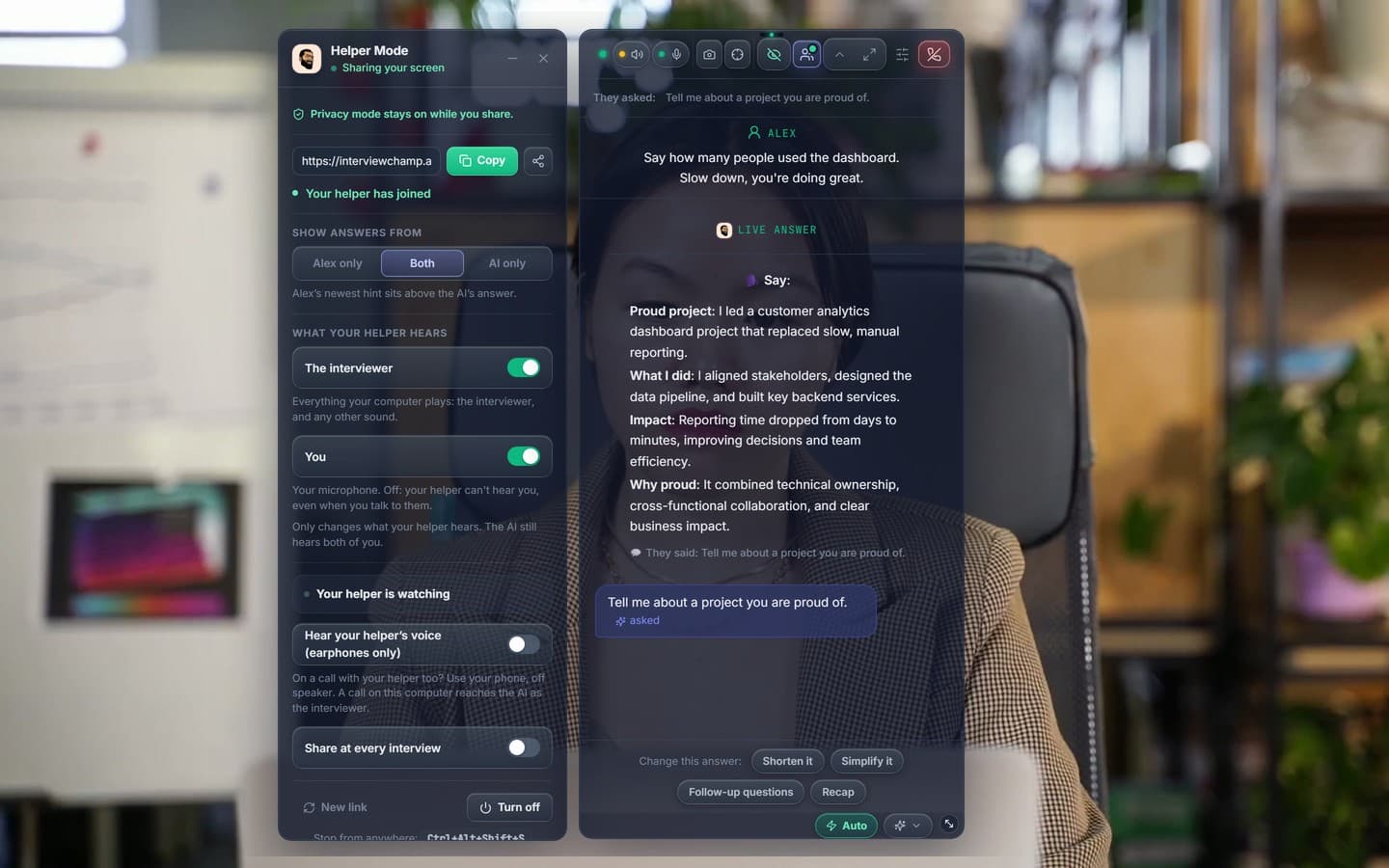
Share your interview screen from the InterviewChamp desktop app for Windows and Mac with someone you trust, so they're there when you need them most. They can talk to you in real time, in your earbuds, and their words show up word by word. Once you allow it, they can control your screen. On Windows, InterviewChamp doesn't show when you share your screen.
Windows and Mac desktop apps · Pro+
- Your helper needs no app or account
- Encrypted, a new key each session
How it works
Share your screen
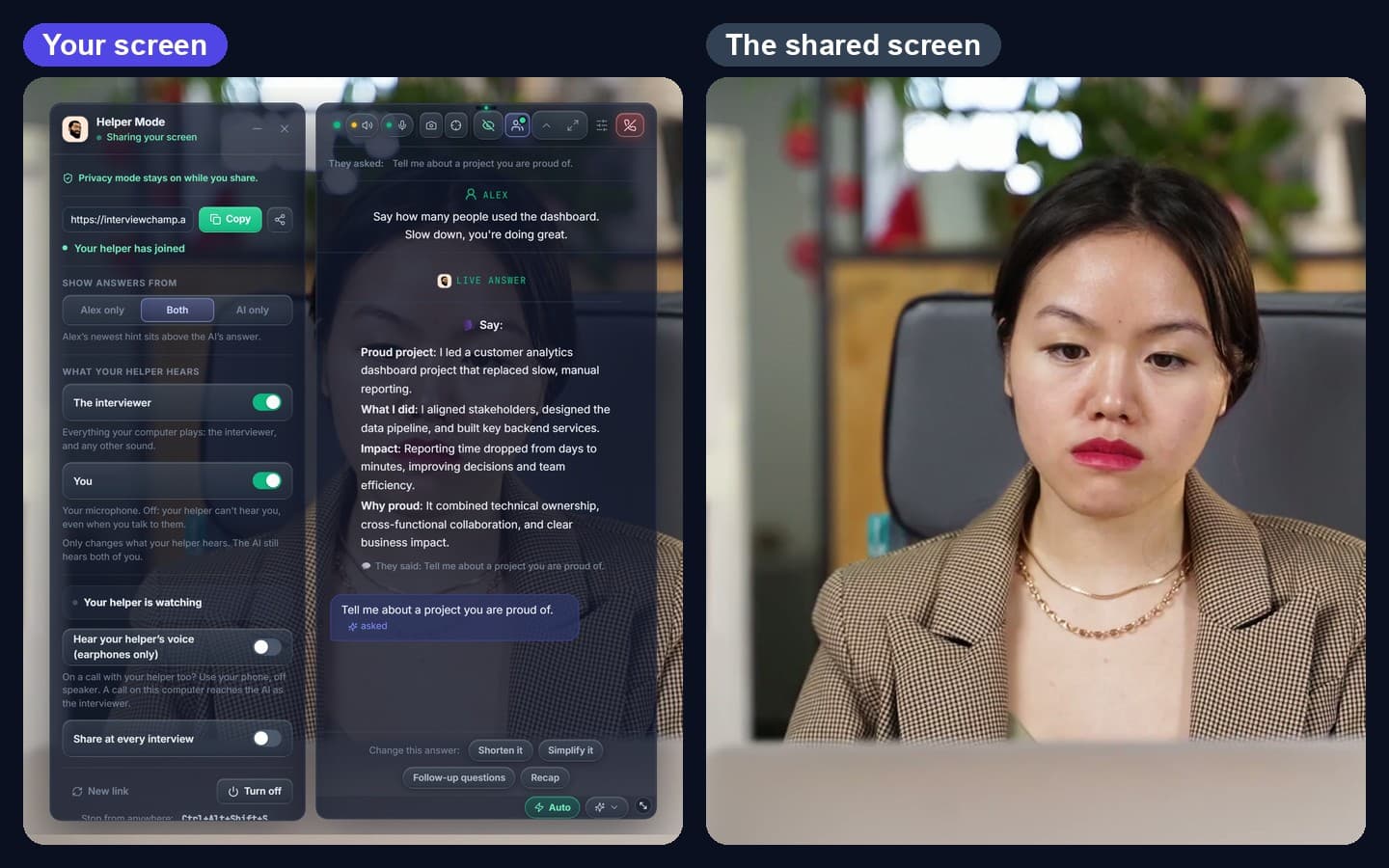
Press “Share with a helper” in the InterviewChamp desktop app for Windows and Mac, then pick the screen.
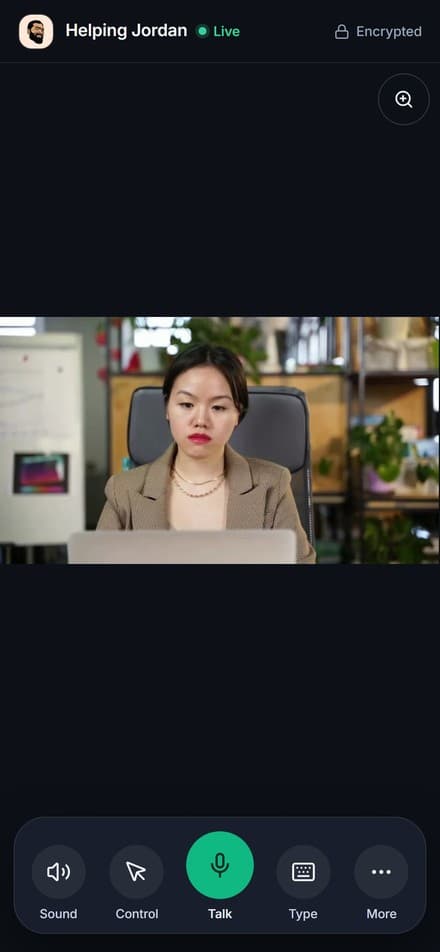
Your helper joins on an iPhone or laptop
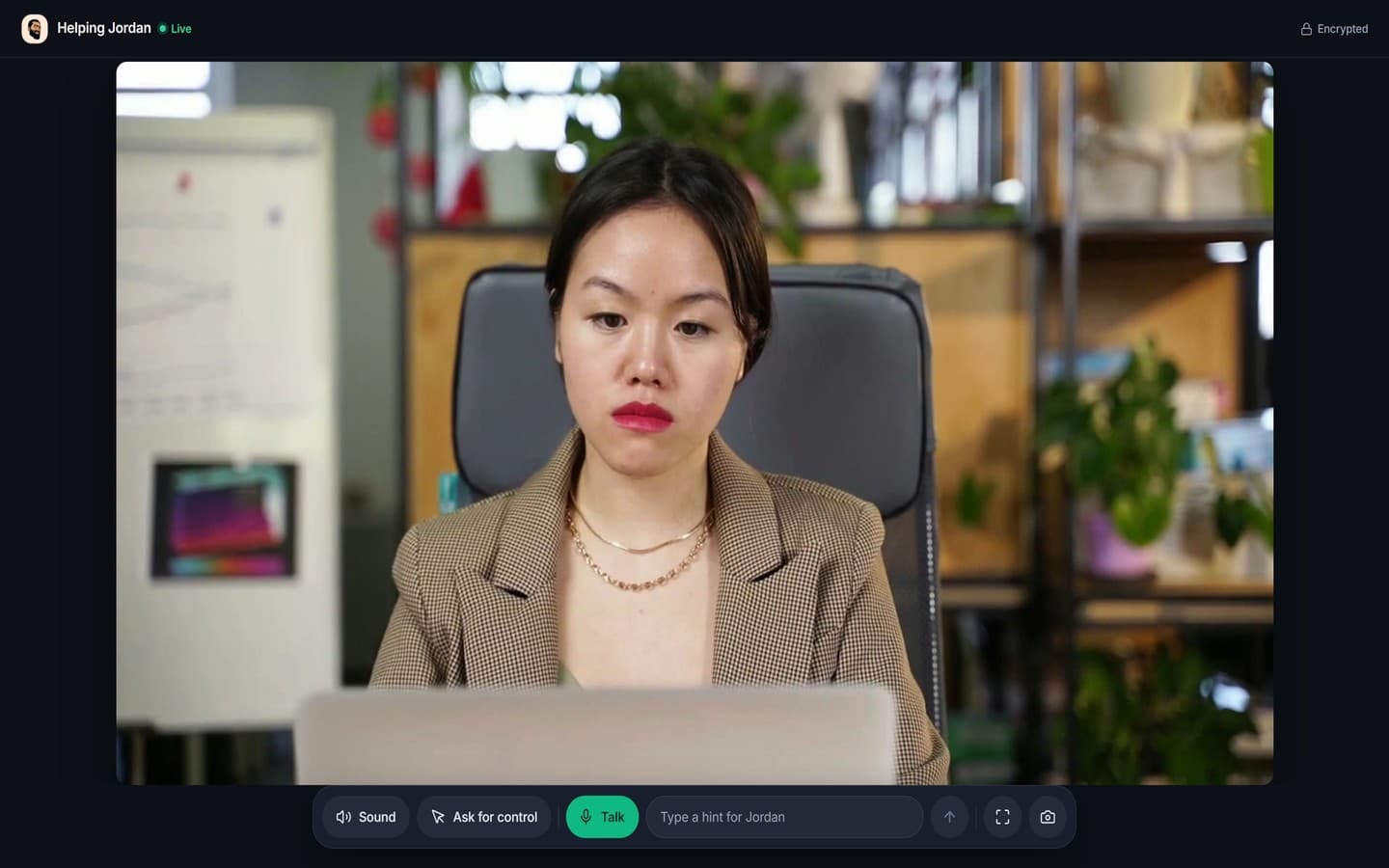
They tap your link in Chrome or Safari and watch your screen live. Nothing to install.
Their hint lands above the AI's answer
What they type shows in your InterviewChamp window with their name, right above the AI's suggested answer.
They talk, word by word
Their words show up on your screen as they speak. Once you turn their voice on, you hear them in your earbuds too.
What is Helper Mode?
Helper Mode is a feature of the InterviewChamp desktop app for Windows and Mac that lets one person you trust help you during a live video interview. You press “Share with a helper” and the app gives you a link and a QR code. Your helper opens it in Chrome or Safari on their iPhone or laptop, types their name and taps Join. They see your shared screen live, hear the sides of the call you allow, and can type hints that show above your AI answer, talk to you, or, once you allow it, click and type on your screen.
- Works with
- Zoom, Google Meet and Microsoft Teams
- Your side
- The InterviewChamp desktop app for Windows and Mac
- Your helper's side
- Chrome or Safari on an iPhone or laptop. No app, no account.
- Privacy
- Screen, sound and hints are encrypted, with a new key each session
- Control
- Only when you allow it. Pause or stop any time.
- Plan
- Part of Pro+. In beta.
InterviewChamp is a learning and preparation aid. Check what the company allows, follow each platform's terms, and don't use an AI helper or Helper Mode during a test, a proctored assessment, a recorded video interview or a take-home.
Last updated
Everything they need to help, from one link
Watch your screen live
The screen you pick, live on their iPhone or laptop. On a phone they pinch to zoom in on small text or a diagram.
Hear the call
They hear the interviewer and you, and can talk back: you read their words, and hear their voice once you turn it on. You decide which sides they may hear, and they can mute either one.
Send you a hint
A typed hint shows in your InterviewChamp window with their name, right above the AI's answer.
Talk you through it
They tap Talk and speak in English. Their words show up on your screen word by word. Once you turn their voice on, you hear them in your earbuds or headphones in clear HD sound, clearer than a phone call. Echo and noise cancelling are built in.
Fix a setting, with your OK
Stuck on a setting in Zoom, Meet or Teams, or opening the job post? They ask for control, and nothing moves until you allow it in the desktop app. You see “typing…” or “clicking…” while they're in control.
Your AI keeps working
The copilot keeps answering while your helper is with you. You get the AI and a person who knows you.
Encrypted. You stay in charge.
Helper Mode was tested on Windows with Privacy Mode on, frame by frame, before it went public. Here is what stays private, and what shows like your own.

InterviewChamp doesn't show when you share your screen
In the Windows app, Privacy Mode turns on by itself while you share. That covers the Helper Mode window, the QR code and every hint. It doesn't hide anything from your webcam.
Encrypted, a new key each time
Each session gets its own key. Your screen, the call's sound and your helper's hints are encrypted before they leave the device, so the video service that carries them sees only scrambled data.
You choose what they hear
Switch off the interviewer's side or your own for your helper. Your AI still hears both.
Their voice stays in your ears
In the Windows app, a quiet test sound plays before their voice does. When it shows you're on speakers, their voice stays off, and their words, typed or spoken, still show as text. On Windows, your AI is kept from hearing their voice, so it won't answer your friend.
One link, one helper
A link lets one person in. A second device is turned away, and a new link shuts the old one.
Your keyboard is the off switch
Control starts only when you allow it, and what your helper clicks or types shows on your screen like your own. Ctrl+Alt+Shift+P pauses it, and Ctrl+Alt+Shift+S ends the whole share (⌘⌥⇧P and ⌘⌥⇧S on a Mac).

Helper Mode comes with Pro+
For interviews you can't afford to lose. Everything below comes in one plan.
- Helper Mode (beta): a person you trust, live in your interview
- Everything in Pro
- Stays private during the call: InterviewChamp doesn't show when you share your screen (desktop app)
- ChampMind Max: always the strongest model, never slowed down at busy times
- Unlimited Mock AI voice interviews
Windows and Mac desktop apps · Pro+
- 30-day refund
- Cancel anytime
- Works with Zoom, Meet and Teams
Helper Mode questions
Privacy Mode comes with Pro+ and turns on by itself while you share: InterviewChamp doesn't show when you share your screen (Windows desktop app). That covers the Helper Mode window, the QR code and your helper's hints. It doesn't hide anything from your webcam. If you let your helper take control, their clicks and typing are real, so they show on your screen like your own.
They can if your helper's voice comes out of your speakers, or if you share your computer's sound in the call. So wear earphones, and don't share your computer's sound. In the Windows app, a quiet test sound plays before their voice does, and when it shows you're on speakers, their voice stays off. Their words, typed or spoken, still show as text.
No. Your helper opens your link, or scans the QR code, in an up-to-date Chrome or Safari on their iPhone or laptop, types their name and taps Join. They don't install anything or make an account.
They see the screen you picked, live, and on a phone they can pinch to zoom in. They hear the sides of the call you allow: the interviewer, you, or both. You can change that, or end the share, at any moment.
Only if you allow it. Your helper taps Ask for control, and you choose in the desktop app. While they have it, your app shows what they're doing, like “typing…” or “clicking…”. Pause it or take it back any time: Ctrl+Alt+Shift+P pauses, Ctrl+Alt+Shift+S ends the share (⌘⌥⇧P and ⌘⌥⇧S on a Mac).
Yes. Each session gets its own key, and your screen, the call's sound and your helper's hints are encrypted before they leave the device, so the video service that carries them sees only scrambled data. A link lets one person in, and making a new link shuts the old one.
On your side, Helper Mode runs in the InterviewChamp desktop app for Windows and Mac, with Zoom, Google Meet or Microsoft Teams. Your helper can use an up-to-date Chrome or Safari on an iPhone or laptop.
Pro+. Helper Mode is in beta. On the Free and Pro plans, the Helper button explains what it does, and pressing Share with a helper offers the upgrade to Pro+.
It depends on the company and the round. Some interviews allow notes or outside help; many do not. InterviewChamp is a learning and preparation aid. Check what the company allows, follow each platform's terms, and don't use an AI helper or Helper Mode during a test, a proctored assessment, a recorded video interview or a take-home.
Walk in with someone in your corner.
Helper Mode is part of Pro+. Your helper joins from a link in Chrome or Safari, with nothing to install.
Windows and Mac desktop apps · Pro+