How to use InterviewChamp in your browser during a live interview (full walkthrough)
Video · 2:44 · 8 chapters
A live session pairs real-time transcription with on-demand AI answers. The AI listens to your interviewer, suggests answers in your answer style, and stays out of the way the rest of the time.
This guide covers the web app flow. The desktop app is identical with one bonus on Pro+: InterviewChamp doesn't show when you share your screen (Full Privacy Mode).
Before you start
- Mic working. You don't have to speak into it; we just need to hear the interviewer through your system audio + your own voice for diarization.
- Browser tab ready. Open your interview's Zoom / Meet / Teams call in another tab. You'll share that tab with InterviewChamp. That share is separate from your meeting and isn't sent to the interviewer.
- Optional but recommended: Upload your resume to Resume AI first. AI answers tailor better to your background.
- Check what the company allows. Some live interviews are fine with notes or an AI helper and some aren't. For tests, proctored assessments, recorded video interviews and take-homes, practice beforehand with InterviewChamp and don't use an AI helper during the test itself.
Step-by-step
- Go to Interview AI in the sidebar and click Start Session. Setups you saved as templates show up first, for a one-click start.
- Pick a session type — Interview (default), or Regular call for any other kind of call (details)
- Pick how it answers — Auto-Answer (on unless you've turned Auto-Answer off in Settings › Account) writes an answer by itself as soon as the interviewer asks; Manual waits until you ask, with Ctrl+Enter or AI Answer. See Auto-Answer.
- Pick an answer style — each card shows a sample answer (see Answer style):
- Quick points (default) — a few bold points to glance at and say out loud.
- Conversational — a full answer, written the way you'd say it.
- Simple — plain, everyday words. Short sentences.
- More human — relaxed and natural. Doesn't sound like AI.
- The job — paste the job link and hit Scrape & Fill to pull in the details, or type the role and hit Enter details manually. Add the company and paste the job description: it's optional, but it's the biggest help for answers that fit the job.
- Your resume — your main resume is already picked, or upload a new one
- Review — give the session a name if you like. Advanced settings has the AI model, the language of your interview and any special instructions. Keep Save these settings as a template on, so next time it's one click.
- Click Start Session. On Windows and Mac it first offers the desktop app, which floats over your call; to stay in your browser, click Continue in browser.
Sharing the right thing
In the video:
The first time, the live page offers the desktop app (click Continue in browser anyway to stay) and a quick tour of where things are. Then:
- Microphone access — allow. The AI needs to hear the interviewer (through your speakers/headphones, which the browser captures via the mic).
- Screen share — pick the tab that has your Zoom/Meet/Teams call. Share that tab (not the whole screen) and switch on Share tab audio, so it can hear the interviewer.
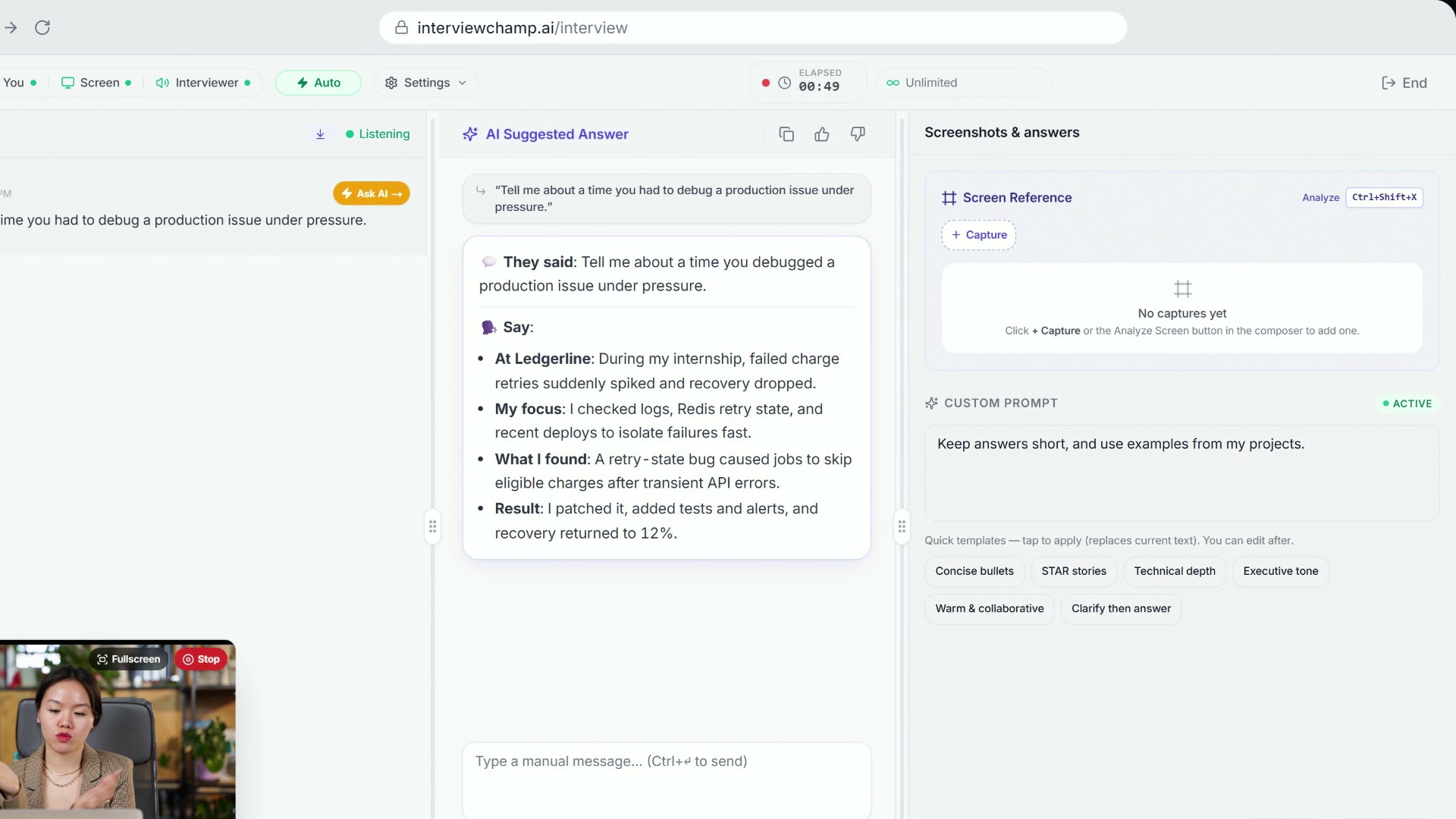
The Screen and Interviewer lights in the top bar turn green, and your call shows up in a small window on the page.
This share goes only to InterviewChamp. It's a separate browser stream and isn't sent to your meeting. The InterviewChamp tab itself is a normal browser tab, though: if you share your whole screen in the meeting, people on the call can see it.
During the session
The screen splits into three panels:
- Left — Transcript. Live captions of who said what, newest at the top. "Interviewer" lines are color-coded; hover one for its own Ask AI button, to answer just that line.
- Middle — AI Suggested Answer. The answer writes itself here. Copy it, or tell it whether it helped.
- Right — Screen Reference and Custom Prompt. Press
Ctrl+Shift+Xto capture and analyze whatever the interviewer is sharing (a coding prompt, a JD, a doc); when a coding question shows up on your screen, it offers to capture it for you (). Custom Prompt tells it how to answer for the whole call ().
Put things where you read (): hover the small call window for its controls, drag it by its top edge out of the way, and pull its corner to resize it. Drag the handles beside the answer to narrow it into a strip right under your webcam. Pop out puts the transcript, or the latest answer, in a small window of its own inside the page (only the desktop app floats over your call).
Firing the AI
In the video:
With Auto-Answer on, the answer writes itself when the interviewer asks. To ask yourself, click Auto in the top bar to switch to Manual, then use one of these:
| Method | When to use |
|---|---|
Ctrl+Enter (Mac: ⌘+Enter) | Default — answer the latest interviewer line |
| Click AI Answer button at the bottom | Same as Ctrl+Enter but mouse-driven |
Type a note, then Send note (or Ctrl+Enter) | Steer it — "Use STAR" / "Be brief" / "Shorter, to say out loud" |
The answer streams in within ~300ms. Read or paraphrase from your screen.
Ending the session
In the video:
Hit End in the top right, then Yes, end. You get a quick summary of your call, with your report and your notes one click away. Everything is saved to Interview AI for review later.
Tips from the founder
- Use it as notes, not a script. Take in the outline, then answer in your own words. The AI gives bullet outlines, not scripts.
- Match the answer style to the moment. Quick points when you need to glance and speak, Conversational when you have time to read, Simple for plain words, More human to sound like yourself.
- Let Auto-Answer do the firing. It's on unless you turned it off in Settings › Account; switch to Manual if you'd rather pick each moment yourself.
- Sub-1-second response only happens on broadband. On flaky wifi, latency can spike to 2-3 seconds; mute your mic for 5 seconds and let the AI catch up.
Common questions
Q: I shared my screen but the AI says "no audio detected." A: When the browser asked which tab to share, you forgot to check Share tab audio. End session, start a fresh one, and look for the checkbox under the tab list in the browser prompt.
Q: I'm sharing my whole screen instead of a tab. Is that OK? A: Works, but less reliable — whole-screen share doesn't capture audio on all browsers. Switch to tab-share (and check Share tab audio) for the cleanest setup.
Q: My interviewer's voice is very quiet in the transcript. A: Mic level + speaker level interact. Crank up your speakers (the AI listens through your speakers via tab-audio). Or wear headphones with a mic — but make sure tab-audio is still captured (some browsers stop capturing if audio routes to Bluetooth).
Q: Can I hide the AI panel mid-session?
A: Web — no built-in hide (it's just another tab). Desktop — Ctrl+H toggles the overlay visibility. Ctrl+Shift+H is a global hide/show toggle that works even when another app is focused.
Q: I'm on a coding screen — can I share the code with the AI?
A: Yes — Ctrl+Shift+X captures your screen + the last interviewer question and sends both to the AI. The AI answers grounded in BOTH the question and what's on your screen. As with any live round, check what the company allows first. See Screen Analysis.
Q: The AI is too verbose / answers are too long. A: Settings → Answer style → Quick points (or Simple). Or open the right-panel Custom Prompt box and type: "Maximum 60 words per answer." Both work mid-session.
Q: My session ended unexpectedly — what happened?
A: Most common: hit the 60-min monthly cap (Free), hit the 15-min slab boundary (Free auto-refills next slab if cap not hit), or WebSocket dropped from network blip. Check /sessions → your session card status to tell which.
Q: Where did my transcript go after I clicked End?
A: /sessions/[id] — the retrospective view. Linked from the End screen automatically. Also clickable from /sessions (the list page).
Still stuck?
Contact us with category "Something is broken" if a flow above failed. Attach a screenshot — we'll usually reply within a few hours.
Still stuck?
Sign in and message the founder directly from the Help & how-tos tab. Every reply comes from a real person, usually within a few hours.
Contact us