How to set up an interview session in the InterviewChamp web app
Video · 1:40 · 2 chapters
Welcome. This guide walks you from signup to your first live AI-assisted interview in under two minutes.
1. Create your account
Sign up at interviewchamp.ai with Google or email. Free accounts get 60 minutes of live AI per rolling month, split into 15-minute runs — no credit card required.
2. Upload your resume (optional but recommended)
Head to Resume AI in the sidebar (every sidebar item) and drop in your latest PDF. The AI uses your resume to tailor every answer to your background — so when an interviewer asks "tell me about a time you led a project," you get a STAR-format answer with your projects, not a generic template.
You can skip this step and still use the live session — the AI will fall back to general best-practice answers.
3. Start a session
From Interview AI click Start Session (full walkthrough). In the video: . Pick:
- Session type — Interview or Regular Call (details)
- Auto-Answer — on unless you've turned it off in Settings › Account: the AI answers each interviewer question by itself. Switch it off if you'd rather fire answers yourself (details)
- Answer style — how answers look: Quick points (default) / Conversational / Simple / More human (details)
- The job — paste the job link and hit Scrape & Fill, or type the role, company and job description yourself
- Your resume — already picked if you uploaded one
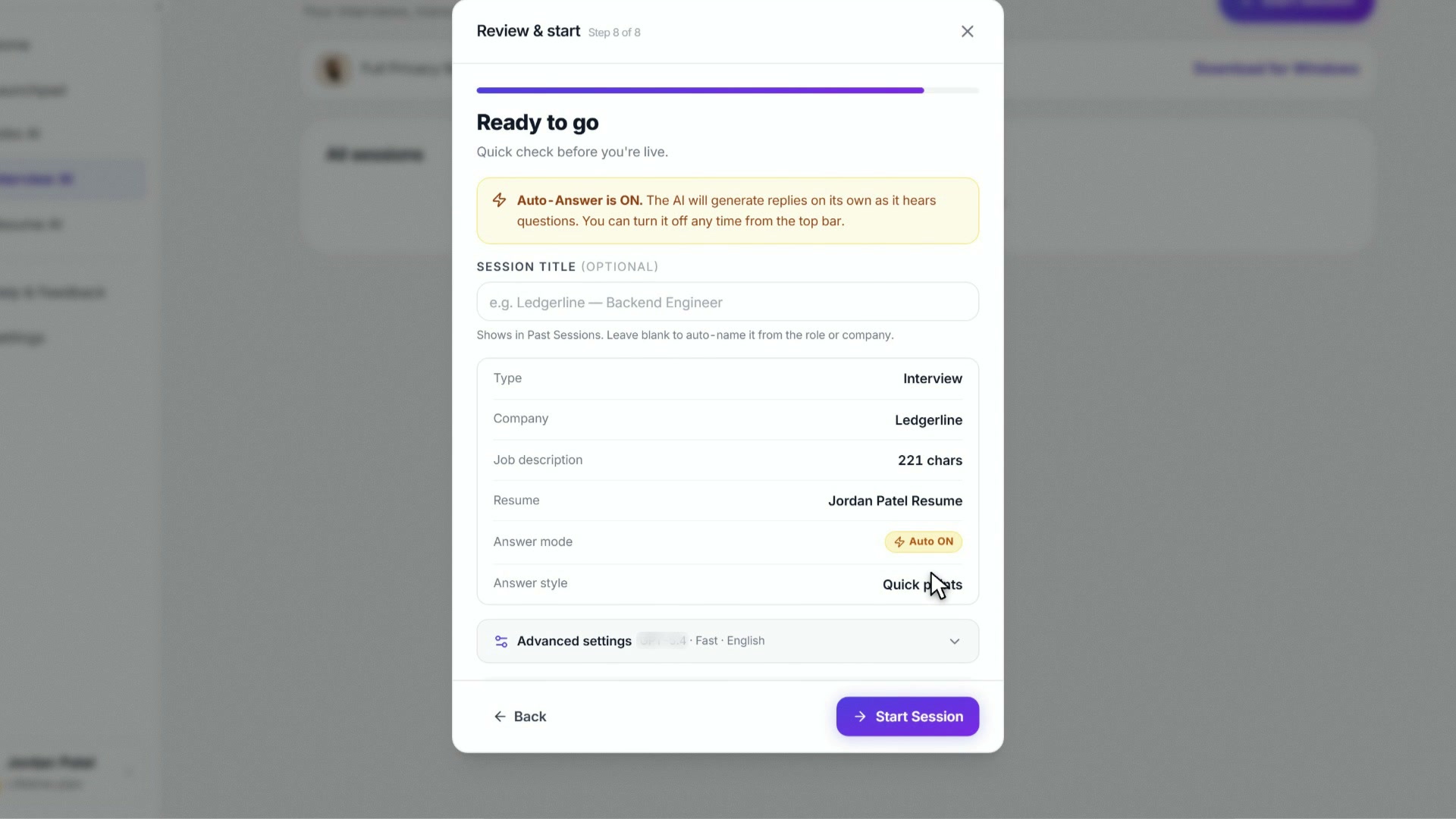
Then Review (): name the session if you like, keep Save these settings as a template on for a one-click start next time, and hit Start Session.
4. Share the right thing
You'll be asked to share your microphone and the meeting tab or window (Zoom / Meet / Teams). The transcript pulls from system audio + your mic; the screen-share is read-only and never re-broadcast.
What goes where: the tab you share here goes only to InterviewChamp, not to your meeting. On the web app InterviewChamp is a normal browser tab, so if you share your whole screen (or that tab) in the meeting, people on the call can see it. With Full Privacy Mode in the desktop app (Pro+), InterviewChamp doesn't show when you share your screen.
5. Trigger the AI
When the interviewer asks a question, three options:
- Press
Ctrl+Enter(orCmd+Enteron Mac) — fastest - Click the big AI Answer button at the bottom of the answers panel
- Turn on Auto-Answer — the AI fires on its own after each question
The answer streams in within ~300ms. Copy with Ctrl+Shift+C or just paraphrase from the screen.
6. End the session
Hit End in the top right (every topbar button), then Yes, end. You get a quick summary of your call, with your report and your notes one click away. Everything stays in Interview AI — keep it or delete it, your call.
Want InterviewChamp hidden when you share your screen?
That's Full Privacy Mode, a Pro+ feature of the Desktop App (Windows and Mac). With it, InterviewChamp doesn't show when you share your screen. It uses the same setting password managers use for their pop-ups. Check it with a share-to-self test in a test meeting before a real call (how). It doesn't hide your webcam or your room, and it doesn't change the company's rules, so check what the company allows. Download it from interviewchamp.ai/download.
Common questions
Q: I don't see anything happening when I click Start. A: You probably didn't pick a "Share tab audio" option in the browser share-screen prompt. Restart the session and check that box.
Q: How do I make the AI fire automatically without me pressing anything? A: That's Auto-Answer, and new sessions start with it on. If it's off: switch it on when you start the session, or in the session with Topbar → Settings (gear) → toggle Auto-Answer ON. If every session starts with it off, turn Auto-Answer back on in Settings › Account. Auto-Answer guide.
Q: Do I need to install something? Why does the web version work? A: Web works on any device for AI answers + transcripts. The Desktop App adds Full Privacy Mode (Pro+): InterviewChamp doesn't show when you share your screen. If you'll share your screen during the call, install desktop, and check what the company allows. Otherwise web is fine. Install guide.
Q: What if my interview is on Microsoft Teams / Webex / Discord, not Zoom? A: Works the same — the browser tab-share captures audio from whatever tab plays it. As long as your meeting is in a browser tab AND you share THAT tab (with "Share tab audio" checked), the AI hears the interviewer.
Q: Why didn't my answer appear when I pressed Ctrl+Enter? A: Three checks — (1) is the green mic + audio dot ON in the topbar? (no audio = no transcript = nothing to send). (2) Did you select the tab playing the meeting audio when sharing? (3) Are you on Free and hit the 60-min monthly cap? Topbar shows "0 min left" if so.
Q: Can people on the call see InterviewChamp? A: On web, InterviewChamp is a normal browser tab: they see it if you share your whole screen or that tab. On desktop with Full Privacy Mode (Pro+), InterviewChamp doesn't show when you share your screen. Your webcam, your voice and your room are on the call either way, and no setting changes the company's rules. Check what the company allows.
Q: What does Lifetime / Pro+ unlock that Free doesn't? A: See the full Plan comparison — short version: unlimited live AI, every AI model including Claude Opus 5, Claude Fable 5.1, GPT-6 Astra and GPT-6 Sol, Full Privacy Mode (Pro+), full resume scorecard breakdown.
Stuck?
Hit the Help & how-tos tab in the sidebar, switch to Contact us, and message the founder directly. Every message lands in his inbox.
Still stuck?
Sign in and message the founder directly from the Help & how-tos tab. Every reply comes from a real person, usually within a few hours.
Contact us